
Zapier Integration
Connect MyClone to 5,000+ apps using Zapier. Every time a conversation ends with any of your personas, MyClone automatically sends a rich webhook payload — including the transcript, lead info, AI-generated summary, and follow-up recommendations — to Zapier. From there, you can route it to Google Sheets, Slack, HubSpot, email, or any app Zapier supports.
What You Get
When a conversation finishes, MyClone sends a webhook with:
- Lead capture — Name, email, and phone number (if collected)
- Full transcript — Every message exchanged
- AI summary — Synopsis, key topics, sentiment analysis
- Follow-up intelligence — Urgency level and recommended next steps
- Conversation metadata — Type (voice/text), message count, persona info
Prerequisites
Before you begin, make sure you have:
- ✅ A MyClone Business Plan or higher (Zapier integration requires Business Plan+)
- ✅ A Zapier account (free tier works)
- ✅ At least one persona created in your MyClone dashboard
- ✅ Email capture enabled on the persona(s) you want to collect leads from
Important: If email capture is not enabled for a persona, the
leadobject in the webhook payload will havenullvalues for name, email, and phone — even if the visitor mentions them during conversation. Make sure to enable email capture in your persona settings (Dashboard → Personas → [Your Persona] → Settings → Email Capture) before relying on lead data in your Zaps.
Setup Guide
The setup has three parts: create a webhook in Zapier, connect it in MyClone, then configure your automation.
Part 1: Create a Webhook in Zapier
- Go to zapier.com and log in
- Click “Create” → “New Zap”
- For the Trigger, choose “Webhooks by Zapier”
- Select “Catch Hook” as the trigger event
- Zapier generates a unique webhook URL — it looks like:
https://hooks.zapier.com/hooks/catch/123456/abcdef/ - Copy this URL — you’ll need it in the next step
Part 2: Connect in MyClone Dashboard
- Go to your MyClone Dashboard → Integrations
- Find the Zapier card and click “Configure”
- In the dialog that opens, paste your Zapier webhook URL into the input field
- Click “Connect”
You’ll see a green “Connected” badge and a confirmation that Zapier is receiving your conversations.
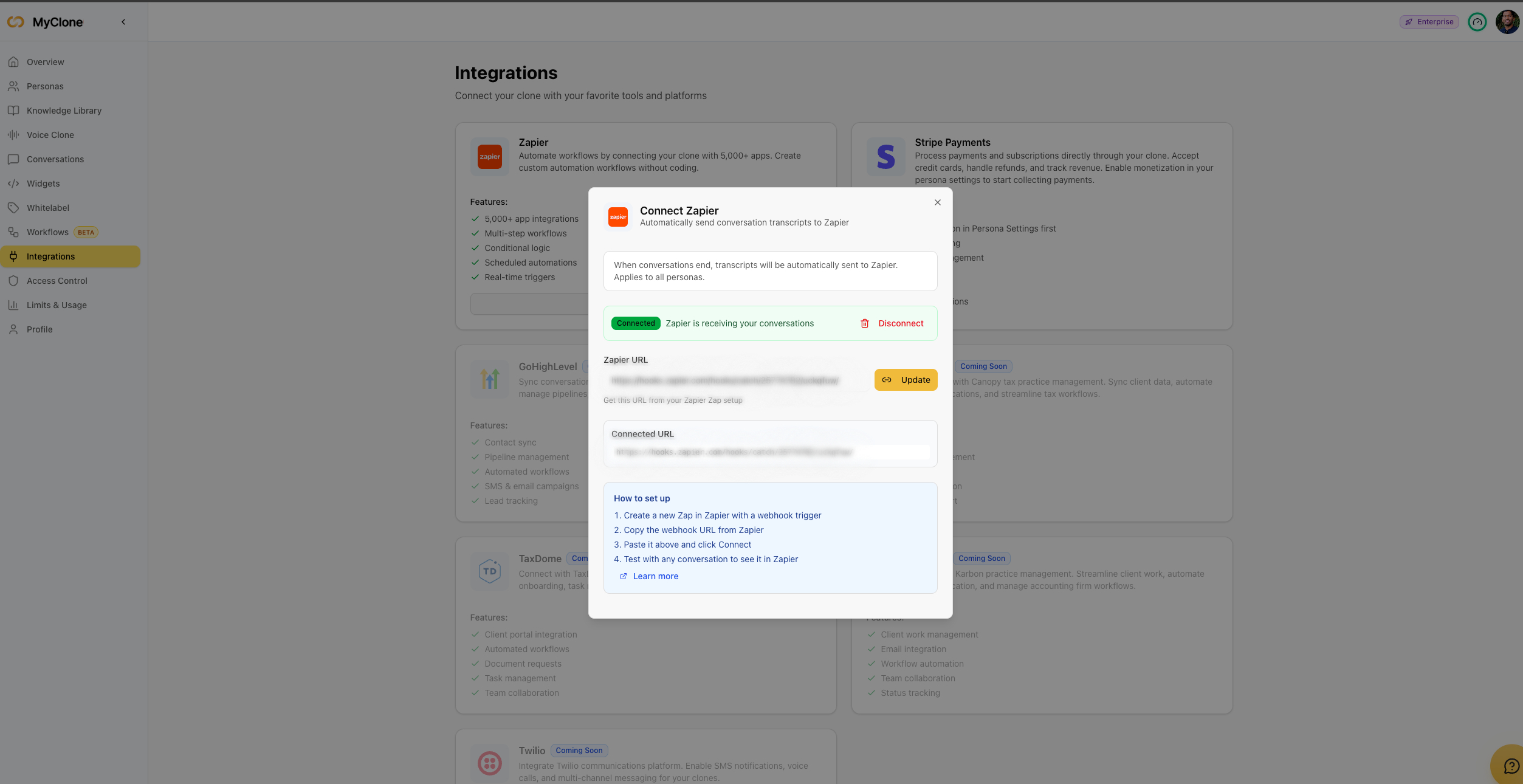
What happens behind the scenes: MyClone registers your webhook URL via
POST /account/webhookwith the eventconversation.finished. From now on, every completed conversation triggers a POST to your Zapier URL.
Part 3: Test and Build Your Zap
- Go back to Zapier and click “Test trigger”
- Have a quick conversation with any of your personas and end it
- Zapier should pick up the webhook — you’ll see the full payload with persona info, transcript, summary, and lead data
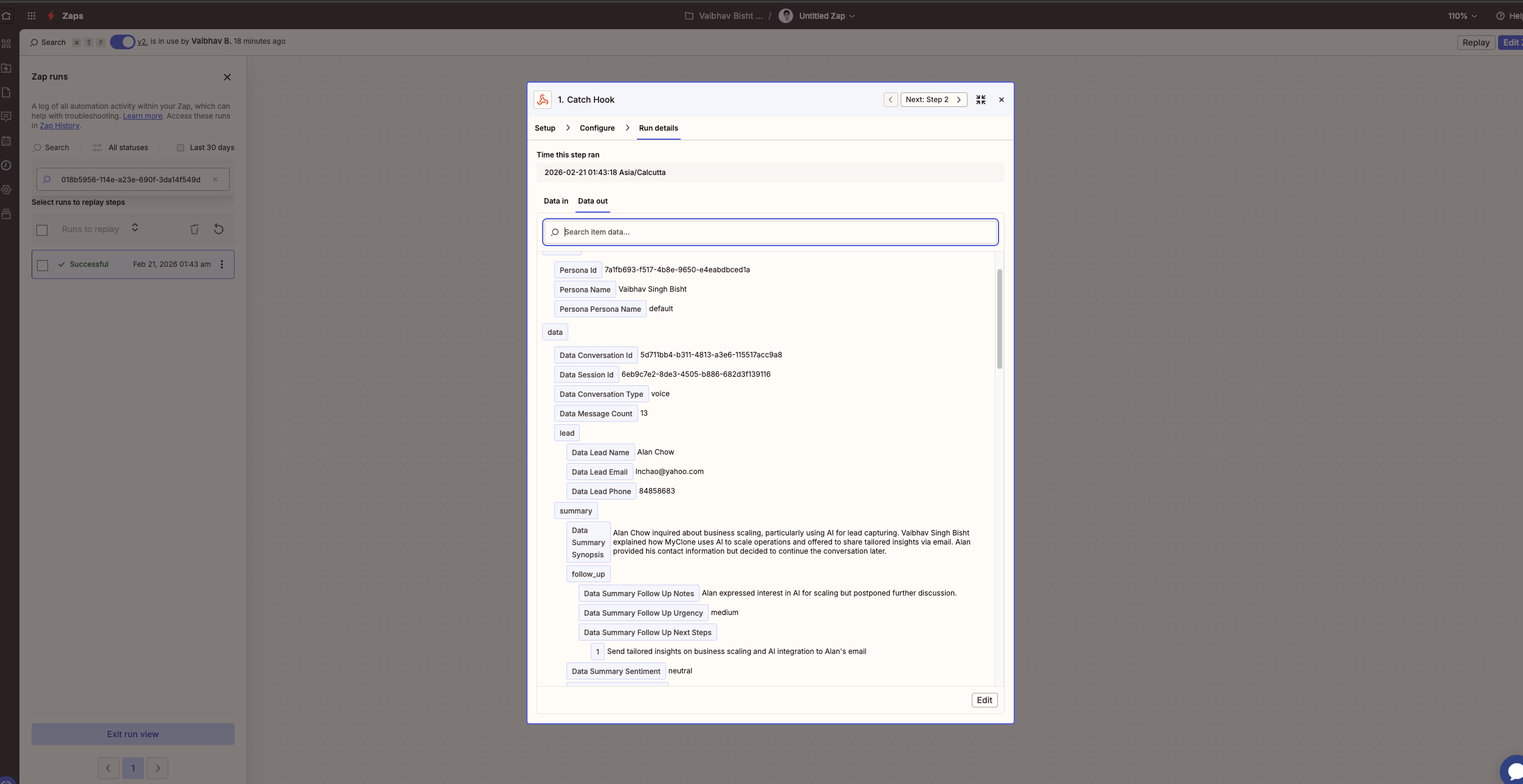
- Add your Action step — choose what happens with the data (examples below)
- Turn the Zap on
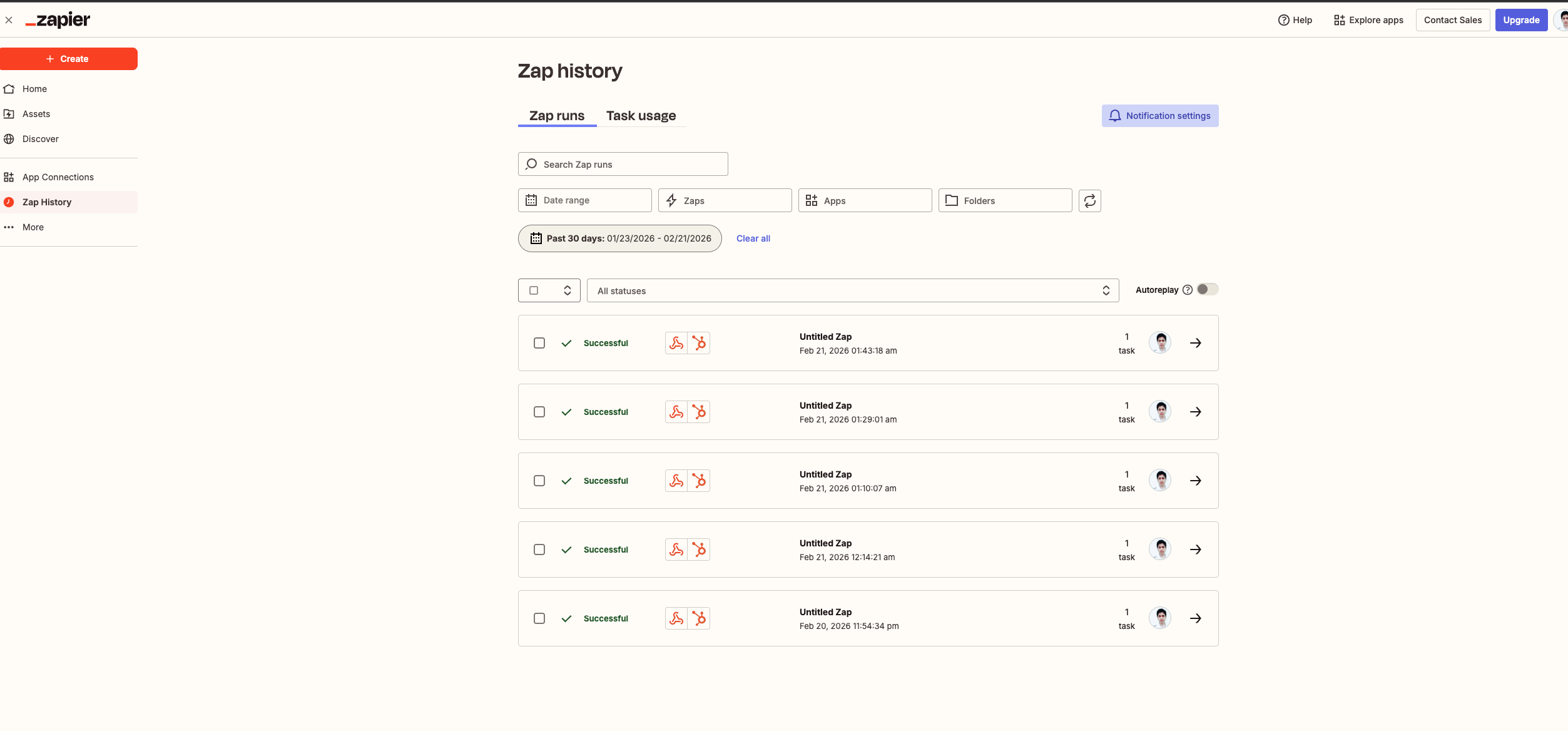
Once active, you’ll see successful runs in your Zap History:
Webhook Payload Reference
Every time a conversation ends, MyClone sends a POST request to your Zapier webhook URL with this JSON structure:
{
  "event": "conversation.finished",
  "timestamp": "2026-02-20T19:40:05+00:00",
  "persona": {
    "id": "7a1fb693-f517-4b8e-9650-e4eabdbced1a",
    "name": "Vaibhav Singh Bisht",
    "persona_name": "default"
  },
  "data": {
    "conversation_id": "5c683d8f-f594-4f19-b226-34ba78b9d7ab",
    "conversation_type": "voice",
    "message_count": 12,
    "lead": {
      "name": "Jim Parker",
      "email": "jimparker58@yahoo.com",
      "phone": "+1-555-0123"
    },
    "summary": {
      "synopsis": "Jim discussed transitioning from building engineering to app development.",
      "key_topics": ["entrepreneurship", "productivity apps"],
      "sentiment": "positive",
      "follow_up": {
        "urgency": "medium",
        "next_steps": ["Share app development resources"]
      }
    },
    "transcript": [
      { "role": "assistant", "content": "Hey! I'm Vaibhav. How can I help?" },
      { "role": "user", "content": "Hi, I wanted to ask about building an app." },
      { "role": "assistant", "content": "Sure! What kind of app are you thinking?" }
    ]
  }
}
Field Descriptions
Top-Level Fields
| Field | Type | Description |
|---|---|---|
event | string | Always "conversation.finished" — triggered when a conversation ends |
timestamp | string | ISO 8601 timestamp of when the conversation ended |
persona | object | Information about the persona that had the conversation |
persona Object
| Field | Type | Description |
|---|---|---|
persona.id | string | Unique identifier (UUID) of the persona |
persona.name | string | Display name of the persona owner |
persona.persona_name | string | Slug name of the specific persona (e.g., "default", "sales", "support") |
data Object
| Field | Type | Description |
|---|---|---|
data.conversation_id | string | Unique identifier (UUID) for this conversation |
data.conversation_type | string | "voice" or "text" — how the user interacted |
data.message_count | number | Total number of messages exchanged |
data.lead Object
Lead information captured during the conversation. Fields may be null if the visitor didn’t provide them.
| Field | Type | Description |
|---|---|---|
lead.name | string | null | Visitor’s name |
lead.email | string | null | Visitor’s email address |
lead.phone | string | null | Visitor’s phone number |
data.summary Object
AI-generated conversation summary.
| Field | Type | Description |
|---|---|---|
summary.synopsis | string | Brief summary of the conversation |
summary.key_topics | string[] | Array of main topics discussed |
summary.sentiment | string | Overall sentiment: "positive", "neutral", or "negative" |
summary.follow_up.urgency | string | Follow-up urgency: "low", "medium", or "high" |
summary.follow_up.next_steps | string[] | Recommended actions based on the conversation |
data.transcript Array
The full conversation transcript as an array of message objects.
| Field | Type | Description |
|---|---|---|
transcript[].role | string | "assistant" (persona) or "user" (visitor) |
transcript[].content | string | The message text |
Use Case Examples
Here are popular ways to use the Zapier integration:
Send Leads to Google Sheets
Automatically log every conversation lead in a spreadsheet.
Zap setup:
- Trigger: Webhooks by Zapier → Catch Hook
- Action: Google Sheets → Create Spreadsheet Row
- Map fields:
- Column A:
data.lead.name - Column B:
data.lead.email - Column C:
data.lead.phone - Column D:
data.summary.synopsis - Column E:
data.summary.sentiment - Column F:
data.summary.follow_up.urgency - Column G:
timestamp
- Column A:
Post to Slack
Get notified in a Slack channel when conversations end.
Zap setup:
- Trigger: Webhooks by Zapier → Catch Hook
- Action: Slack → Send Channel Message
- Message template:
New conversation with {{data.lead.name}} ({{data.lead.email}})
Persona: {{persona.name}}
Type: {{data.conversation_type}} | Messages: {{data.message_count}}
Summary: {{data.summary.synopsis}}
Sentiment: {{data.summary.sentiment}} | Urgency: {{data.summary.follow_up.urgency}}
Add to CRM (HubSpot, Salesforce, etc.)
Create or update contacts in your CRM with conversation data.
Zap setup:
- Trigger: Webhooks by Zapier → Catch Hook
- Action: HubSpot → Create/Update Contact
- Map fields:
- Email:
data.lead.email - Name:
data.lead.name - Phone:
data.lead.phone - Notes:
data.summary.synopsis
- Email:
Send Follow-Up Emails
Automatically email leads after their conversation.
Zap setup:
- Trigger: Webhooks by Zapier → Catch Hook
- Filter: Only continue if
data.lead.emailexists - Action: Gmail/Outlook → Send Email
- Personalize the email body using
data.lead.nameanddata.summary.synopsis
Multi-Step Workflows
Combine multiple actions in a single Zap:
- Step 1: Log lead to Google Sheets
- Step 2: Send Slack notification if urgency is
"high" - Step 3: Create HubSpot contact
- Step 4: Send follow-up email if sentiment is
"positive"
Managing Your Connection
Update Webhook URL
If you need to change the webhook URL:
- Go to Dashboard → Integrations → Zapier
- Paste the new URL
- Click “Update”
Disconnect
To stop sending webhooks:
- Go to Dashboard → Integrations → Zapier
- Click the “Disconnect” button (red)
- Webhooks will stop immediately
You can also turn off or delete the Zap in Zapier to stop processing — though MyClone will still send the webhooks unless you disconnect.
Troubleshooting
Zapier Not Receiving Data
Problem: You connected the webhook but Zapier’s test trigger shows nothing.
Solutions:
- Make sure you’ve had a complete conversation after connecting (start and end a conversation with any persona)
- Verify the webhook URL is correct — re-copy from Zapier and paste again
- Check that your MyClone plan includes Zapier integration (Business Plan+)
Missing Lead Data
Problem: lead.name, lead.email, or lead.phone is null.
Solutions:
- Enable email capture — This is the most common cause. Go to Dashboard → Personas → [Your Persona] → Settings → Email Capture and make sure it’s turned on. Without this, lead data won’t be collected regardless of what the visitor says.
- Visitor didn’t provide info — Even with email capture enabled, fields are only populated if the visitor actually submits their details. If your persona doesn’t prompt for contact info, consider updating its prompt to ask.
Zap Failing
Problem: Zap runs show errors.
Solutions:
- Check the error message in Zapier’s Zap History
- Verify your action step (Google Sheets, Slack, etc.) is still connected
- Make sure field mappings are correct — Zapier sometimes loses mappings after payload changes
- Re-test the trigger to refresh the payload schema
Webhook URL Changed
Problem: You created a new Zap and the old webhook URL no longer works.
Solution: Each Zap has a unique webhook URL. If you create a new Zap, you must update the URL in MyClone Dashboard → Integrations → Zapier.
Common Questions
Which events trigger the webhook?
Currently, only conversation.finished is supported. The webhook fires when a conversation ends (visitor leaves or session times out).
Does it work with all personas?
Yes. Once connected, the webhook fires for conversations across all your personas. The persona field in the payload tells you which persona the conversation was with.
Is there a limit on webhooks?
There’s no limit from MyClone’s side. Zapier’s free tier allows 100 tasks/month — check your Zapier plan for limits.
Can I send to multiple Zapier URLs?
Currently, one webhook URL is supported per account. If you need to route to multiple destinations, use Zapier’s Paths or Filter steps to branch within a single Zap.
Is the data secure?
Yes. Webhooks are sent over HTTPS. The payload contains conversation data, so treat your Zapier webhook URL as sensitive — don’t share it publicly.
Next Steps
- Embed Persona on Website — Add a chat widget to capture more leads
- Managing Your Persona — Monitor conversations directly in the dashboard
- Best Practices — Optimize your persona for better conversations
Need help? Check our FAQ or contact support.